Respondus LockDown Browser comes to PrairieTest
PrairieTest now integrates with Respondus LockDown Browser, supporting locked-down exams on any computer.
PrairieTest now supports Respondus LockDown Browser. For exams linked to PrairieLearn, instructors and testing centers can require students to take the exam inside a secure, locked-down environment, configured directly from PrairieTest.
What is Respondus LockDown Browser?
Respondus LockDown Browser is a secure web browser purpose-built for online exams. While a student is taking an exam, it prevents them from accessing other websites, opening applications, switching tabs, copying or printing content, accessing screen-sharing or virtual machines, and using most keyboard shortcuts, effectively turning the device into a secure testing environment for the duration of the assessment.
How the integration works in PrairieTest
What students see
Instead of the regular "Start exam" button, students see "Open in LockDown Browser" on their reservation page:
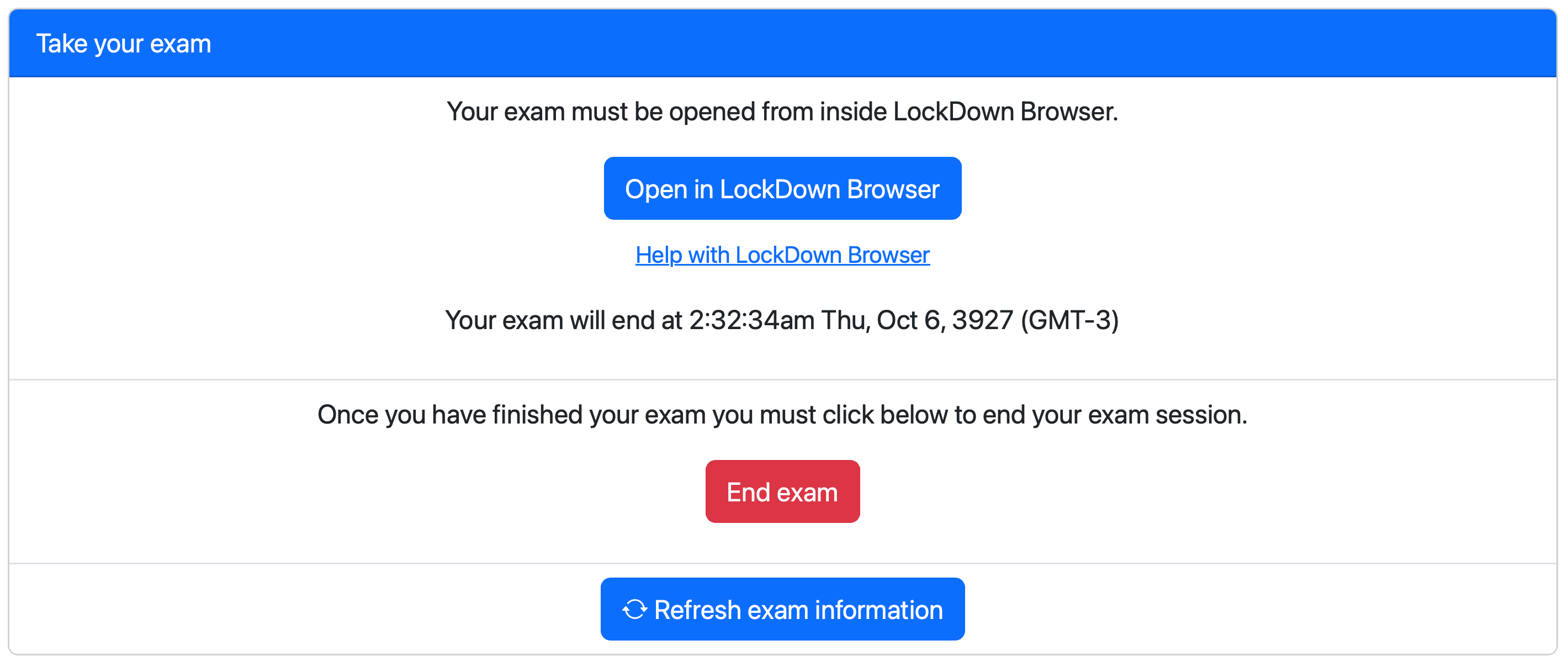
Students see an 'Open in LockDown Browser' button when their exam requires it.
Clicking it opens the reservation inside LockDown Browser, where they can start the exam in the protected environment. For installation steps and supported platforms, point students to the PrairieTest LockDown Browser docs page.
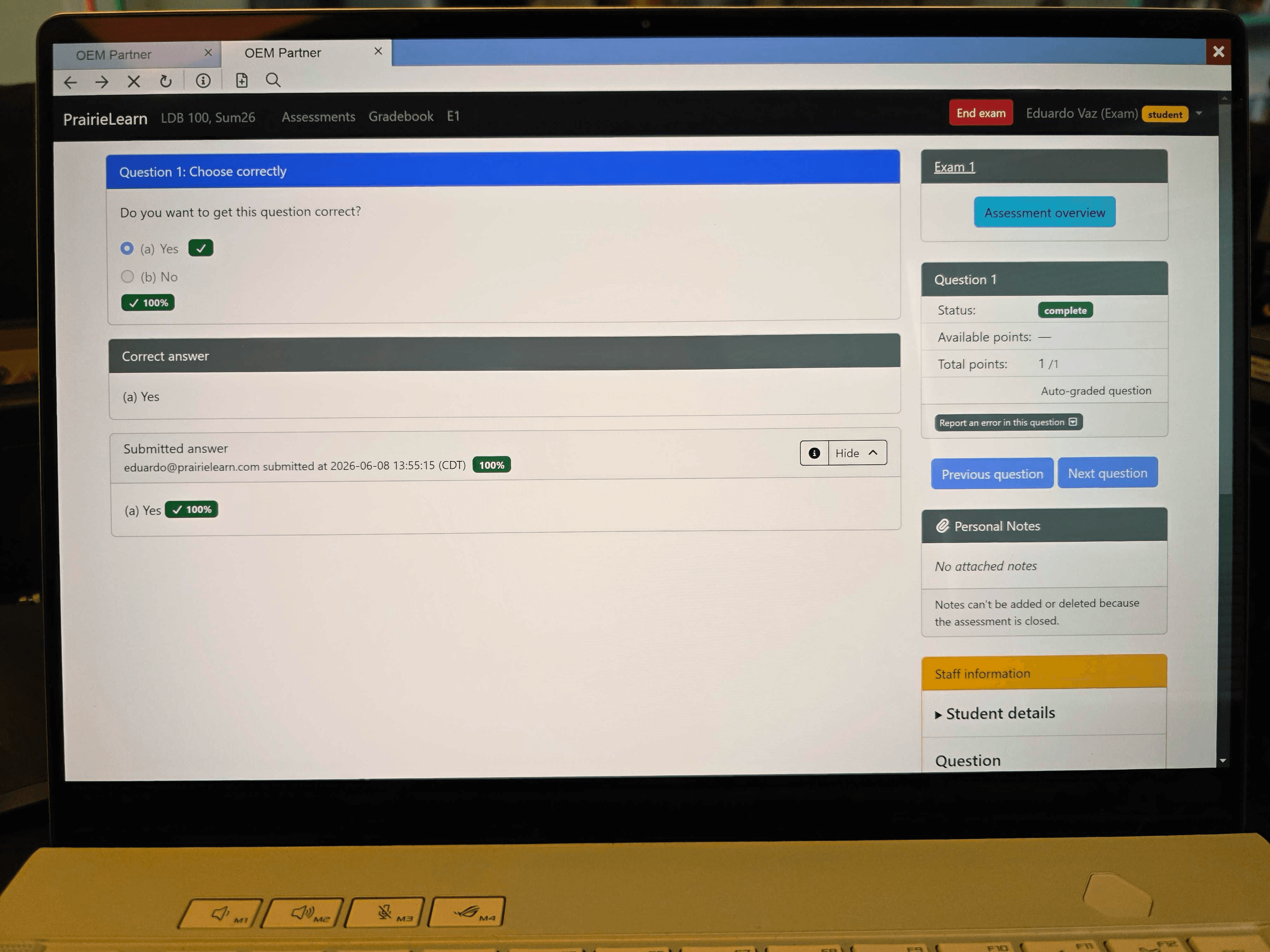
A PrairieLearn assessment open inside the LockDown Browser.
Setting it up for your course
LockDown Browser can be configured for either course-run exams or for exams scheduled into a PrairieTest testing center.
Option 1: Course-run exams (online or in-class)
For course-run exams that don't depend on a testing center, the setting is per-session and lives on the course session itself, so course staff control it directly. Every reservation in that session will open the linked PrairieLearn assessment in LockDown Browser. See the PrairieTest setup docs for the toggle.
Tip: Because students need to install LockDown Browser on their own computers beforehand, announce the requirement to your class ahead of exam day.
Option 2: Exams scheduled into a PrairieTest testing center
For testing centers, the use of LockDown Browser is managed at the location level, and every session that runs in that location inherits it automatically. See the PrairieTest setup docs for the toggle.
If the exam uses the testing center's computers, testing center staff should make sure that the computers have LockDown Browser installed, and that the proctors know how to help students with setup. If the exam uses student computers instead, instruct them on installing the LockDown Browser before the exam.
This means:
If you’re course staff: you don’t toggle anything yourself. Students will automatically use LockDown Browser as configured by the testing center.
If you’re center staff: enable LockDown Browser once on the location’s Settings tab and every center session there will use it automatically.
Student-owned computers vs. institution-owned computers
LockDown Browser can be used on either student-owned or institution-owned computers. The most secure option is to use institution-owned computers, as they can be secured by IT staff to avoid the installation of any software attempting to circumvent the LockDown Browser exam environment.
Student-owned computers can also be used with LockDown Browser, and with observation from human proctors this also provides a reasonable level of security for exams.
Whether using student-owned or institution-owned computers, it's essential to always have active human proctoring, to prevent students from accessing phones, smart glasses, earbuds, or other unauthorized material.
Final thoughts
Native LockDown Browser support brings proctoring tools into the same workflow as the rest of your PrairieTest exams. Whether you run an online quiz, an in-class assessment, or a testing center exam, you can require a locked-down environment in a couple of clicks. We’re excited to see how courses put it to use.
More detailed information about LockDown Browser support can be found in the PrairieTest documentation. If you have questions, let us know on Slack.