Overhauled enrollment management
Enrollments just got easier to manage.
The new self-enrollment and publishing systems are here! They bring many improvements, including fine-grained self-enrollment controls and the ability to manage everything in the UI (JSON editing is still available, but it's no longer required).
Key Takeaways:
- Your existing course instances don't need any changes.
- Going forward, students can enroll in courses with either a link or enrollment code (see the self-enrollment section), or via an invitation (see the invitations section). There is no longer a global list of course instances that students can pick from.
Let's get into all the new features!
Enrollment management
You should now use the "Students" tab to manage enrollments. You no longer need to manage enrollments or access in JSON. There are two main ways to grant students access to your course instance:
- Provide students with a self-enrollment link or code
- Manually invite students to your course instance
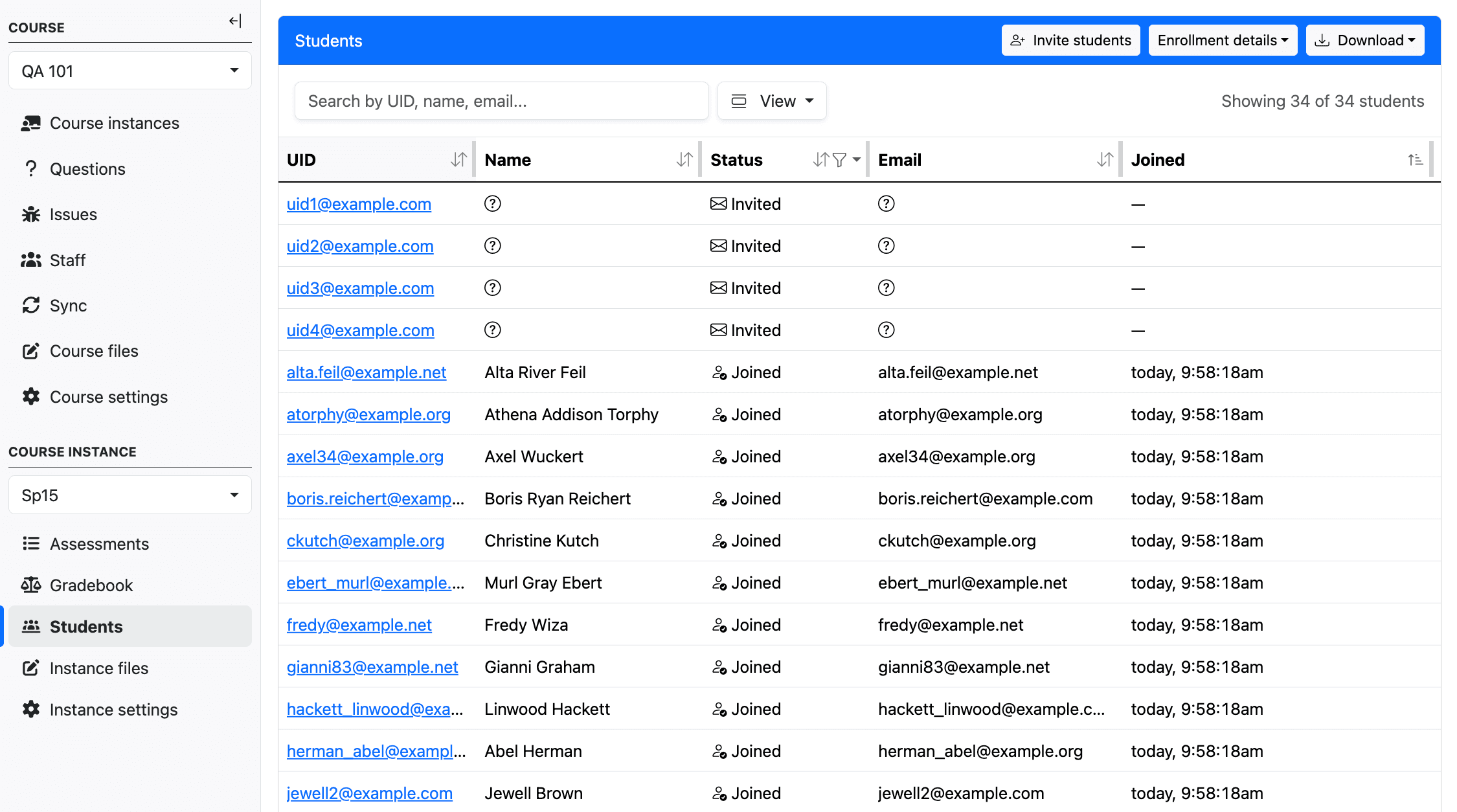
The Students tab shows all enrolled students and pending invitations
Self-enrollment
Self-enrollment allows students to enroll in a course instance as long as they have a code or link. You can further limit self-enrollment by restricting it to students in the course's institutions or by setting a cutoff date.
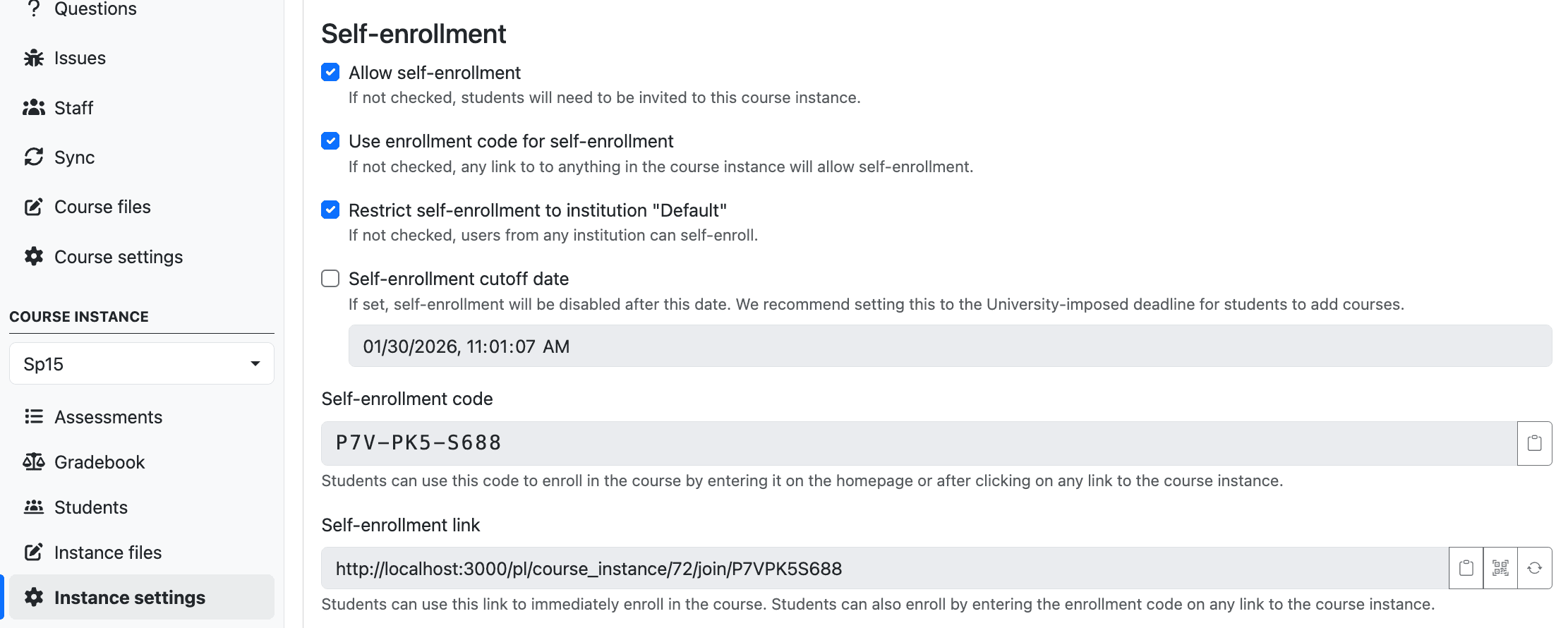
The full self-enrollment settings panel with all available options
Self-enrollment codes
If you want to allow students to input a code to join your course instance, you should check "Use enrollment code for self-enrollment". If they access any link to your course instance, they will be prompted to enter the code.
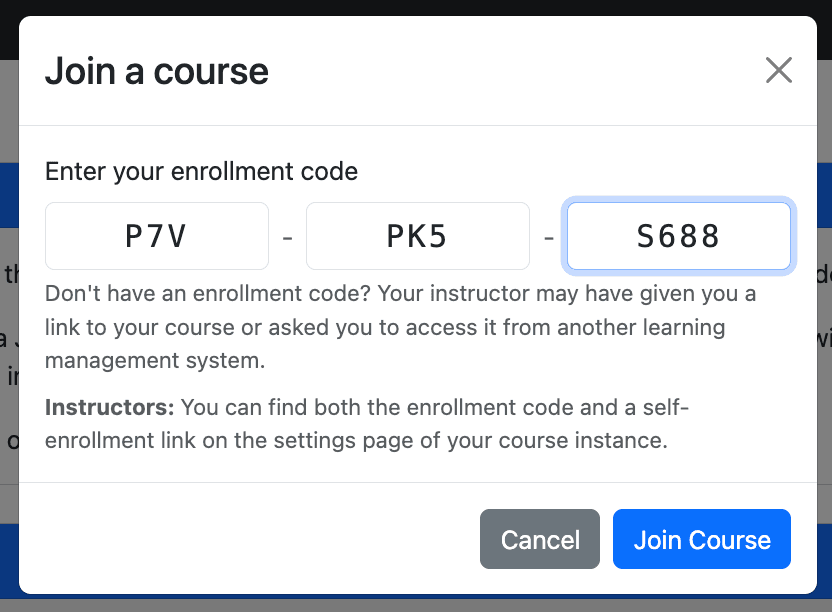
Students can enter an enrollment code from the homepage to join a course instance
Invitations
You can also explicitly invite students to your course instance. These invitations will show up on the homepage for students to accept. If you want full control over everyone in your course instance, consider disabling self-enrollment completely.
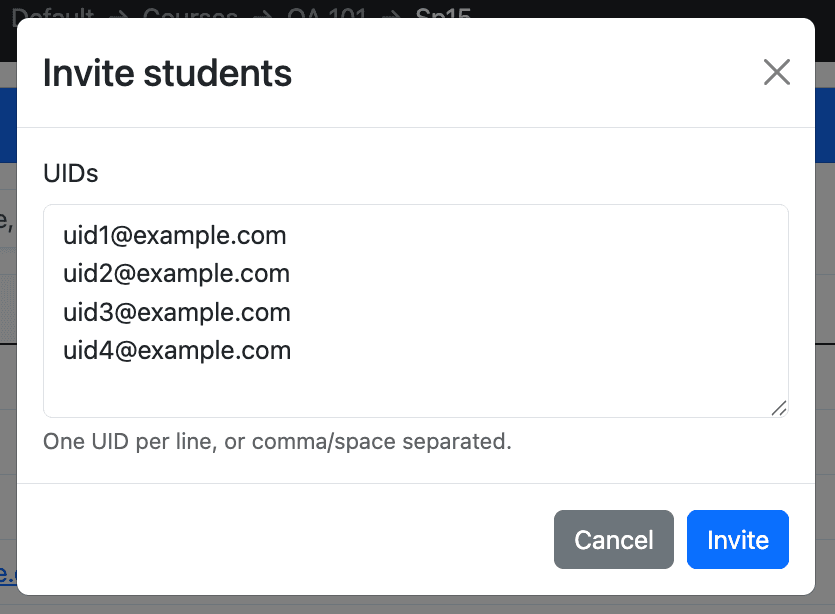
Inviting students to a course instance

Students can see and accept invitations directly from their homepage
Managing individual students
Changes to a student's enrollment are logged and visible on the individual student page. You can get to this page by clicking on a student's UID via the "Students" or "Gradebook" tabs. From this page, you can also block a student from a course instance.
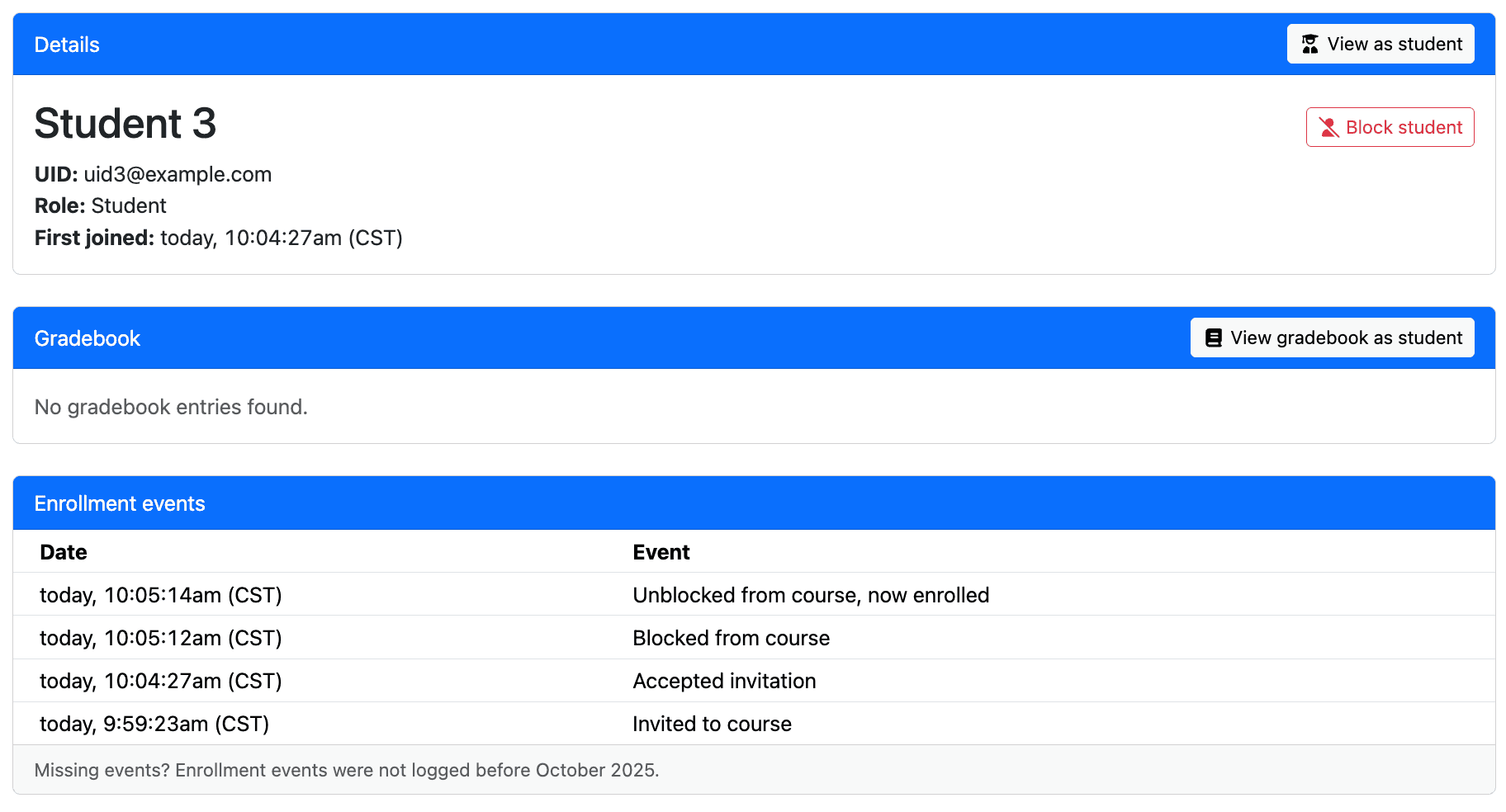
The student details page
Publishing
Publishing is the new system to determine if a student can access a course instance. A course instance can be "unpublished", "published", or "scheduled to be published".
Unpublished course instances are not visible to students, and they cannot enroll in them or access the contents. Students are able to enroll in published course instances and access their contents. When preparing for a new term, you can set up your course instance to be published in the future. On that date, the course instance will switch to published.
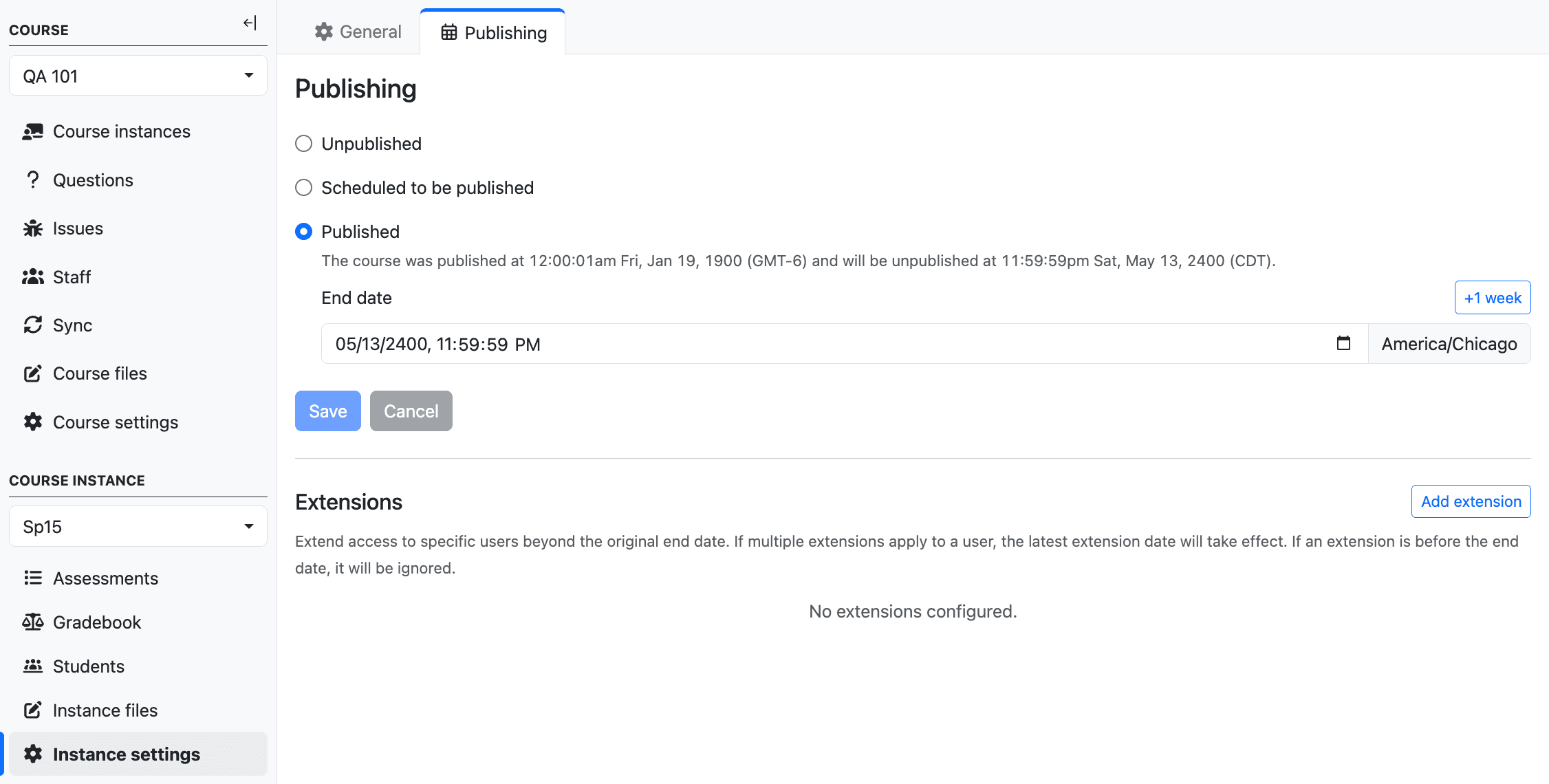
You can schedule a course instance to be published automatically on a future date
Copying or creating a new course instance in the UI will automatically migrate you to the modern publishing system. If you prefer to manage your course instance via JSON files, you can follow the steps in the documentation to migrate your course.
Publishing extensions for individual students
You can grant an extension to give specific students continued access to the course instance after its end date. If a student has multiple extensions, the latest one takes effect. These extensions are not written to the course instance's JSON file.
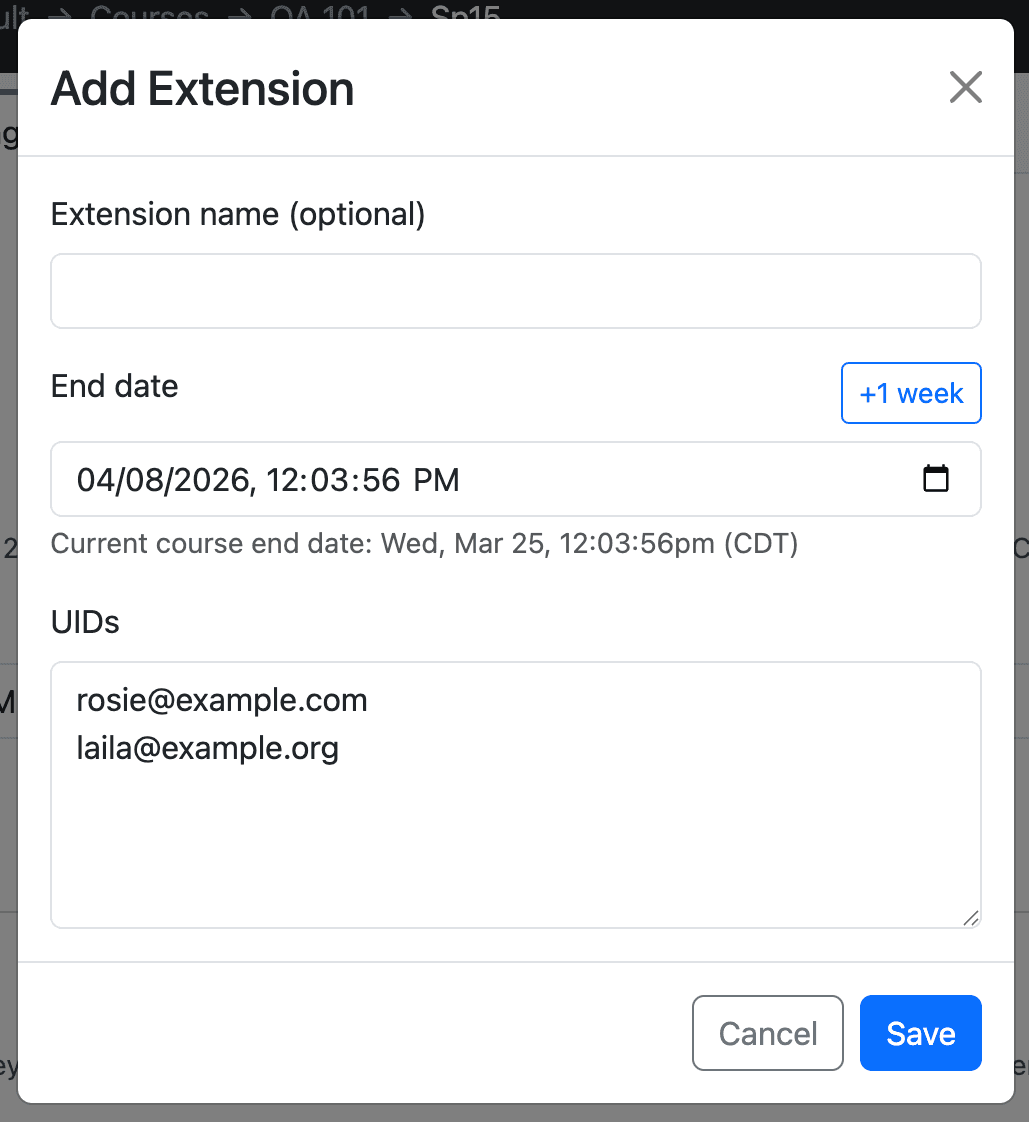
Granting an extension to specific students directly through the UI
Other changes
- Students now manage their enrollments via the homepage.
- The dedicated enrollment page that listed all course instances has been removed.
More detailed information about all these features can be found in the course instance documentation. If you have questions, let us know on Slack.