Introducing Canvas (QTI) content importing
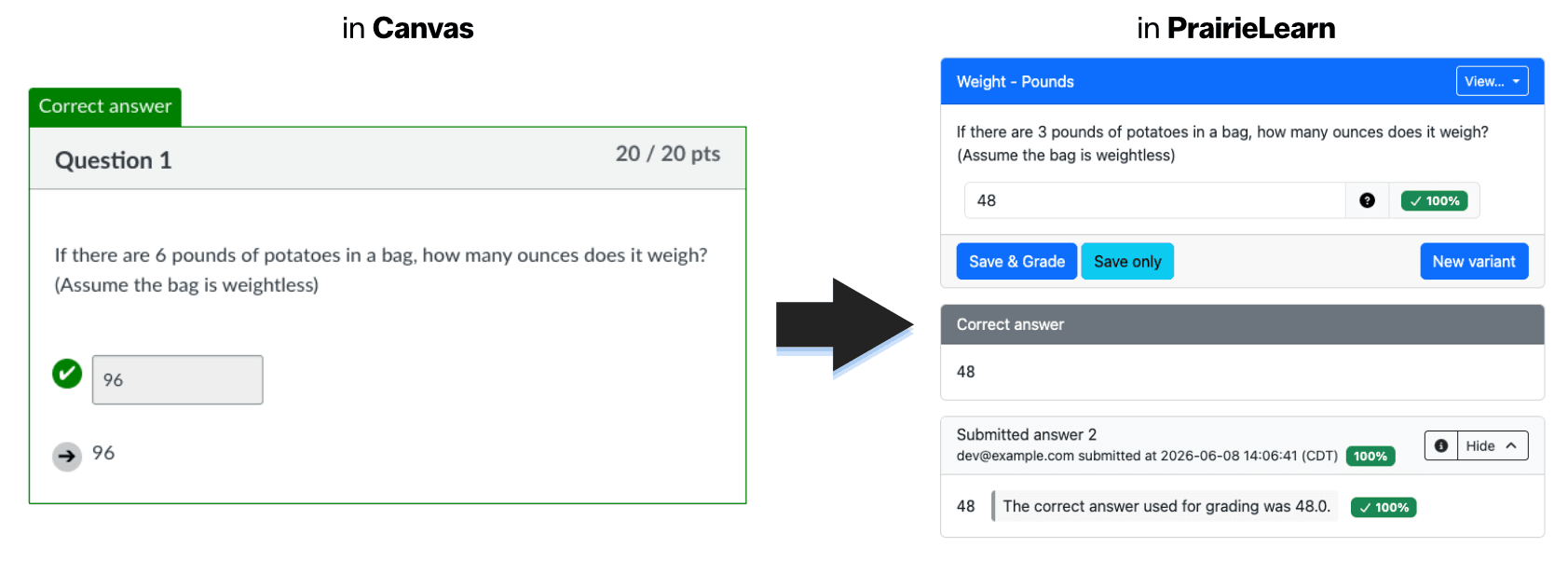
We've heard from a lot of our users that they'd love to leverage the powerful features of PrairieLearn with more of their course's content, but that manually recreating all the coursework they've already put together in Canvas would be a huge headache. Setting up dozens or hundreds of quizzes, exams, and complex questions from scratch in PrairieLearn can be a daunting task.
Well, it used to be a daunting task. We're proud to announce that today, we're making QTI Content Import available to all PriaireLearn users.
A matter of some import
Our new content import functionality allows users to quickly and easily pull their quizzes, exams, homeworks, question banks, and more from Canvas and other QTI-compatible LMS systems into PrairieLearn. We took special care to ensure that every bit of functionality you can get out of the Canvas quiz format translates nicely into your PrairieLearn course.
Fortunately, Canvas makes it easy to export your content as a zip or imscc format (for individual assessments and entire courses, respectively). Lots of other LMS products are able to export these formats too, and many such files can be imported into PrairieLearn today. Any question or assessment content adhering to the QTI 1.2 standard is able to be brought into PrairieLearn.
The questions, quizzes, and assessments you bring into your course from these systems are translated into fully-fledged PrairieLearn questions and assessments, with all the capability you'd get from faithfully translating them by hand, including preparation of compliant pl-element tags.
Where to look
Looking to pull in questions from a Canvas quiz or a question bank? Check out your course's Questions page, and click the "Add questions" dropdown on the top right. You'll find a new "Import questions" link that takes you to the import flow.
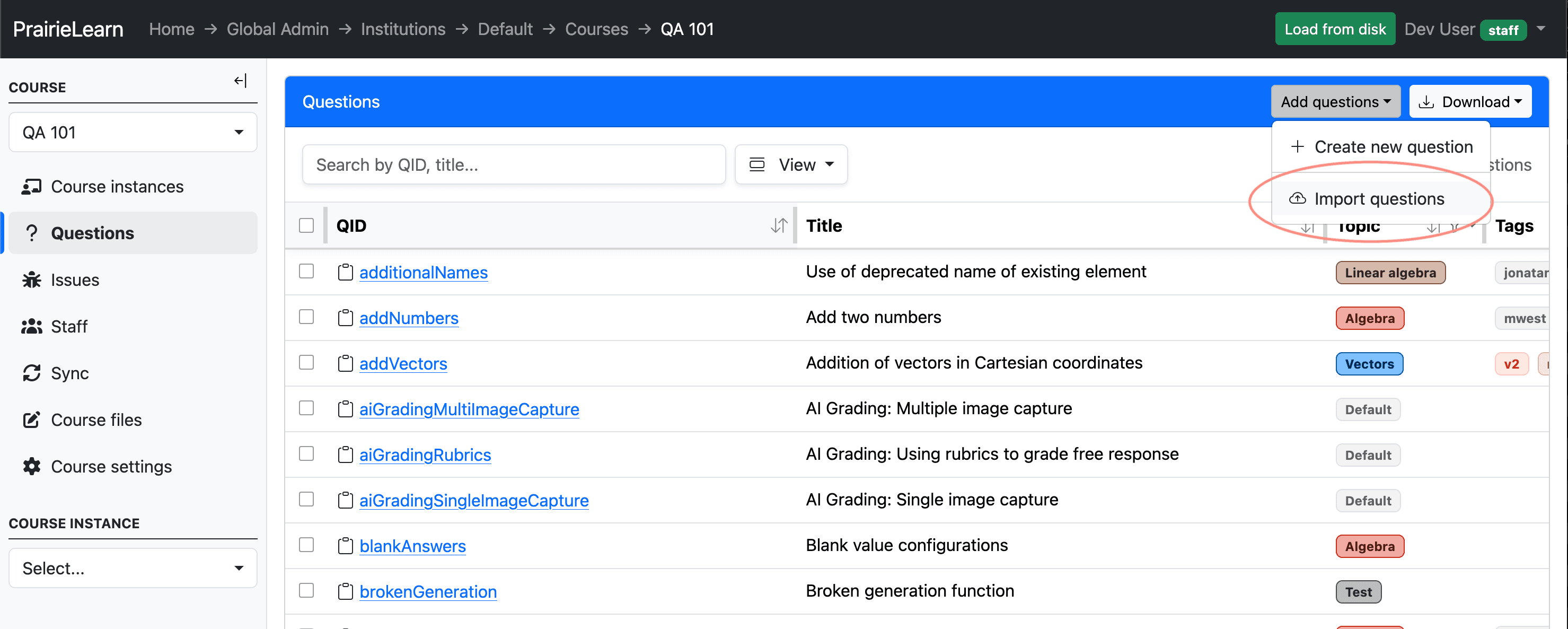
Import via the Questions page
Working on a particular course instance, and want to pull in some exams or assessments for this term? You'll see the new "Import content" button at top right on the assessments page as well.

Import via the Assessments page
Both locations will bring you to the same import flow, so whether you end up bringing either kind of content into PrairieLearn, you're covered.
Your content, just the way you like it
We know how important it is to instructors that their course content is presented exactly the way they intended it. When using the new QTI import feature, you're able to pick and choose which pieces of content you'd like to incorporate from your files.
Easily rename, categorize, tag, and inspect all the materials you've created elsewhere, and get a clear view of how they'll be translated into their PrairieLearn equivalents. We'll call out any potential problems we detect with integrating your content, and you're free to address any issues however you see fit.
Of course, once you're happy with the content to-be-imported, you're able to work with and manipulate your new questions and assessments as you'd expect within the application to make the most of PrairieLearn's powerful features, like first-class testing facility support through PrairieTest integration and our all-new AI grading feature.
Everything you need, nothing you won't
PrairieLearn QTI import supports the vast majority of assessment features Canvas offers: your fill-in-the-blank, matching, calculation, and other question types are captured faithfully into our pl-element equivalents. Both 'Classic' and 'New' format Canvas quizzes can be imported, and even the largest question banks are pulled cleanly into your PrairieLearn course. Certain aspects of Canvas quizzes, like access-control related properties and time limits, are excluded so that you can establish fresh policies using PrairieLearn's more robust offerings.
The import process retains only the binary assets (think images, figures, PDFs) which are referenced by your questions and assessments, and leaves out the bits that aren't relevant to PrairieLearn, like wiki content and unreferenced files. Because we only capture the content and media that will be used within PrairieLearn's assessment ecosystem, you can start with an exported archive of any size, and the application will automatically trim away unneeded files.
Get importing today
We conducted a beta testing period with professors from the University of California at San Diego, the University of British Columbia, the University of Illinois at Urbana-Champaign, and the University of Michigan. The early feedback we received not only helped us refine the functionality and user experience, but also cemented our feeling that this is a powerful and highly useful tool for PrairieLearn users coming from Canvas and other learning management systems.
We're excited to offer it to all PrairieLearn users starting today, and we can't wait to see how it improves everyone's experience on the PrairieLearn platform, instructors and students alike. Please reach out to our team on Slack if you have feedback of your own, or if you'd like a guided experience to show you how QTI Content Import can broaden your institution's capabilities.
We'd like to extend our thanks to Dev Singh, whose development contributions to the QTI conversion feature were invaluable in getting this out to our users.
- Export content from your Canvas course's Settings page.
- Visit the Assessments page of a course instance, or your course's Questions page.
- Select your exported content's
ziporimsccfile. - Review the importable content, and pick which assessments and questions you'd like to import. By default, all importable content will be pulled into PrairieLearn.
For tips and fully comprehensive instructions, see the Importing Content documentation page.